Linode Library Home
Categories
Getting Started
Beginner's Guide
Using Linux
Linode Manager
Networking
LAMP Guides
LEMP Guides
Web Servers
Web Applications
Email Guides
Citadel
Postfix
Zimbra
Google Mail
Exim Guides
Mailman
Fetchmail
Getmail
High Availability
SSL Guides
Databases
Server Monitoring
Development
Communications
Advanced
Troubleshooting
How to Contribute
Sitemap
Linode Library RSS Feed
Linode Library Home :: Email Server Guides :: Using Google Apps for Email
Print View Download PDF Download RST

Using Google Apps for Email

Author: Sam KleinmanExternal Link
Published: September 11, 2009
Revised: August 6, 2010

There are many options for running your own email server, and with applications like Citadel, hosting your own email stack can be quite straightforward. Nevertheless, managing independent email servers can be daunting, given email's importance and potential for complexity. This is particularly true when you have multiple users and/or complex filtering schemes. Many people prefer to delegate their email to a third-party email service like Google so they can better concentrate on the administration of other, more mission critical services.

The process for forwarding your email to Google's servers is a matter of redirecting the MX DNS records which govern email routing to Google's email servers. Note that there are a number of third-party email service providers, and Linode does not specifically endorse any of them.

For more information about the Standard Edition of Google AppsExternal Link, visit their site. The Standard Edition is available at no cost. This document assumes that you are using the Linode DNS Manager to manage the DNS records for your domain name, and that you've already signed up for a Google Apps account.

These instructions work with the Linode platform. If you don't have a Linode yet, sign up for a Linux VPS and get started today.

Creating MX Records Link

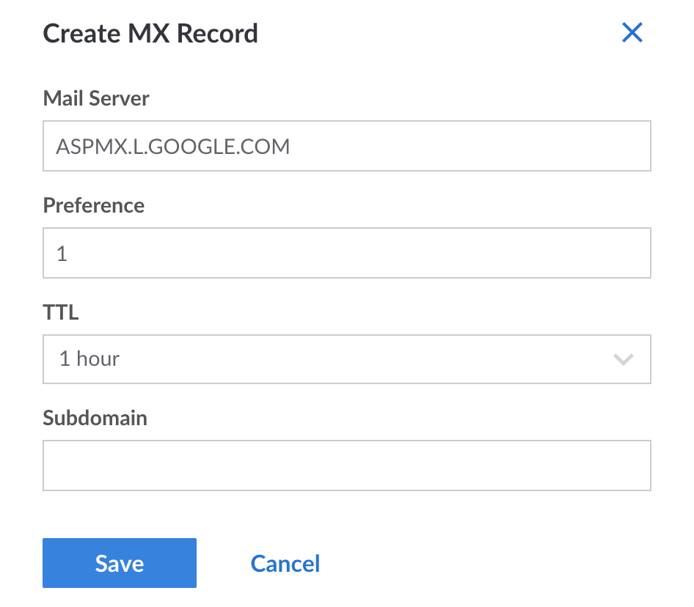
To direct your email to Google Apps, you need to set up five MX records for your domain. When you click on "Add/Edit a MX Record," you will find a form that looks like this:

Adding an MX record for Google Apps in the Linode DNS Manager.

Create the following MX records:

  1. ASPMX.L.GOOGLE.COM - Priority = "1"
  2. ALT1.ASPMX.L.GOOGLE.COM - Priority = "5"
  3. ALT2.ASPMX.L.GOOGLE.COM - Priority = "5"
  4. ASPMX2.GOOGLEMAIL.COM - Priority = "10"
  5. ASPMX3.GOOGLEMAIL.COM - Priority = "10"

Please note that although the Google Apps documentation states that there must be a trailing dot after each hostname, this is not required in the Linode DNS Manager. The trailing dot will be added to our DNS records automatically, and should not be specified in the hostname.

Verify Domain Ownership Link

During the sign up process, Google will need you to verify that you have authority over the domain that you're setting up with their servers. They provide two ways to accomplish this.

The first option involves creating an HTML file with specific content at a particular location on your domain. During the sign up process, select "Upload an HTML" file. You will then be provided with a code to include in the contents of a googlehostedservice.html file. Simply issue the following command in the "DocumentRoot" for that domain at the terminal:

echo "[code]" > googlehostedservice.html

If you don't have a web server set up, you can create a temporary CNAME record in the Linode DNS Manager by clicking on the "Add a new CNAME Record" link in the relevant domain record. Fill out the form with the information provided by the Google sign up process. The Linode DNS manager refreshes its records every quarter hour, so it may take some time for the CNAME record to be accessible to Google.

At this point the configuration is complete. You may have to wait several hours; Google says that it could take 24 to 48 hours for DNS to redirect correctly. After that window, however, all of your email should be successfully directed at Google's servers.

License Link

This guide is licensed under a Creative Commons Attribution-No Derivative Works 3.0 United States LicenseExternal Link. Please feel free to redistribute unmodified copies of it as long as attribution is provided, preferably via a link to this page.

Comments

Comment poster gravatar. Submitted by alex r on Tuesday, January 5 2010 at 13:19:00 GMT

Please update this guide with details on how to configure SPF record in the DNS manager: http://www.google.com/support/a/bin/answer.py?hl=en&answer=33786

Comment poster gravatar. Submitted by Bruno on Monday, January 18 2010 at 14:09:04 GMT

To create a subdomain mail.yourdomain.com. Just add the CNAME record:
Hostname: mail
Aliases to: ghs.google.com

Comment poster gravatar. Submitted by laura on Tuesday, January 26 2010 at 22:23:34 GMT

What's not clear is what you're supposed to do with the mail.yourdomain.com MX entry that was created in the initial DNS setup.

Comment poster gravatar. Submitted by Patrick McLaren on Sunday, February 14 2010 at 06:06:12 GMT

If you follow the Google Apps documentation, it tells you to remove any existing MX Records.

Comment poster gravatar. Submitted by geppa on Wednesday, February 17 2010 at 15:09:21 GMT

@laura: I think you are supposed to either not create it in the first place, if you plan on google's offering, or delete it when you add the google related entries, or make it's "priority" > 10 so that it has lower priority the google's servers if you plan to install a backup server anyway.

Comment poster gravatar. Submitted by Anonymous Visitor on Saturday, February 27 2010 at 18:54:33 GMT

@lara - google says to simply delete the defaults and only leave their servers.

Comment poster gravatar. Submitted by Phil Paradis on Saturday, February 27 2010 at 20:32:00 GMT

@Laura - You may safely delete any MX records that were initially created, unless of course you're using them as backup MX entries.

Comment poster gravatar. Submitted by Bertilo Wennergren on Sunday, February 28 2010 at 21:00:31 GMT

"What's not clear is what you're supposed to do with the mail.yourdomain.com MX entry that was created in the initial DNS setup."

I had the same question, but then somewhere in the Google Apps pages, I found that you should definitely delete the original mail.yourdomain.com MX entry. That's what I had done anyway, and it seems to work.

Comment poster gravatar. Submitted by David on Wednesday, March 17 2010 at 18:07:53 GMT

Yes, please update this on how to correctly specify SPF record. I've spent an inordinate amount of time trying to get the SPF record set properly. Some recipients receive mail fine without the SPF record specified. Other mail servers are rejecting any mail.

Comment poster gravatar. Submitted by Andy on Thursday, March 25 2010 at 22:29:23 GMT

Yeah, this was a bit difficult to decipher, IMO. Here's what I did, so that others may get some benefit... I added the following as a new TXT record.

Name: <leave this blank!!!>
TTL: Default <you can change if you want, but no need, really>
Value: v=spf1 ip4:<ip address of your server> a:<a record for your server> include:aspmx.googlemail.com ~all

Make sure you plug in your IP address (either from your dashboard, or ifconfig) and your a record from your DNS.

HTH!

Comment poster gravatar. Submitted by spencer on Wednesday, April 7 2010 at 15:41:13 GMT

I'm getting this error when trying to create a CNAME record to my Gmail [mail.mydomain.com]

"Record conflict - CNAMES must be unique"

If it's related, I do have a "mail" host name under "A/AAAA Records". Would it be okay to delete that one?

Comment poster gravatar. Submitted by Gerald on Monday, April 12 2010 at 05:11:29 GMT

I googled around for the proper SPF settings, and came up with this:
"v=spf1 a mx include:aspmx.googlemail.com ~all".
I tried to test it via http://www.kitterman.com/spf/validate.html and http://www.vamsoft.com/spfcheck.asp, passed both of them. I think I will give it a couple of days to see if there is any bounced mails.

Comment poster gravatar. Submitted by Cory on Sunday, April 25 2010 at 03:53:58 GMT

Does this take the place of needing something like Postfix? I can't seem to get it work via the contact form on my website.

Comment poster gravatar. Submitted by Stan Schwertly on Thursday, May 20 2010 at 09:47:00 GMT

Cory: Yes, but you'll need to update whatever code is used in your contact form. This can range from manually editing it for custom applications, to configuring something as simple as a WordPress plugin (for example, the "Configure SMTP" plugin: http://wordpress.org/extend/plugins/configure-smtp/installation/)

Comment poster gravatar. Submitted by Ryan on Wednesday, June 9 2010 at 08:40:33 GMT

any tips on how to have the URLs changed?

so
mail.example.com goes to the gmail login
and
calendar.example.com goes to the gcal login?

Currently, its telling me that I don't have a unique CNAME.

Comment poster gravatar. Submitted by Ryan on Wednesday, June 9 2010 at 08:40:34 GMT

any tips on how to have the URLs changed?

so
mail.example.com goes to the gmail login
and
calendar.example.com goes to the gcal login?

Currently, its telling me that I don't have a unique CNAME.

Comment poster gravatar. Submitted by Stan Schwertly on Wednesday, June 9 2010 at 15:31:24 GMT

Hi Ryan,

Feel free to use the following guide from Google on creating custom URLs for Google Apps:

http://www.google.com/support/a/bin/answer.py?answer=53340

Comment poster gravatar. Submitted by Trung on Friday, July 23 2010 at 08:05:20 GMT

Great article! I have some questions.

Let's say I'd like to create two email users for my domain: feedback@encognitive.com and support@encognitive.com .

How do I create the email users "feedback" and "support"?

Do I need to install any email programs such as postfix before I can create those users?

Thank-you!

Comment poster gravatar. Submitted by Stan Schwertly on Thursday, July 29 2010 at 09:28:44 GMT

Trung: Nope, you'll only need to create those accounts through the Google Apps UI!

Got a comment?

BBCode formatting is allowed. Email addresses are confidential, and are only used for gravatars and sending document/comment updates if requested. Please refer to our privacy policy. All comments are moderated and may take some time to appear on this page.