
Guides - Rescue and Rebuild
Linux virtual machines equipped with a tailored set of resources designed to run any cloud-based workload.
Even the best system administrators may need to deal with unplanned events in the operation of their services. The Cloud Manager provides recovery tools that you can leverage if you are having trouble connecting to one of the Compute Instances, and this guide describes those tools:
You can boot your Compute Instance into Rescue Mode to perform system recovery tasks and transfer data off the disks, if necessary.
If you are unable to resolve the system issues, you can rebuild the Compute Instance from a backup or start over with a fresh Linux distribution.
Troubleshooting Resources
While this guide outlines the recovery tools that Linode makes available to you, it does not provide a specific troubleshooting strategy. Our other guides offer a logical progression of steps you can follow when troubleshooting different symptoms:
If you are not able to establish basic network connections with the Compute Instance, then review the Troubleshooting Basic Connection Issues guide.
If you can ping the instance but can’t access SSH, follow the Troubleshooting SSH guide.
If you can access SSH but are experiencing an outage with a web server or other service, review Troubleshooting Web Servers, Databases, and Other Services.
For an overview of all these issues and answers to other questions, check out the Troubleshooting Overview guide.
Rescuing
Rescue Mode is a safe environment for performing many system recovery and disk management tasks. Rescue Mode is based on the Finnix recovery distribution, a self-contained and bootable Linux distribution. Within Rescue Mode, you can mount a Compute Instance’s disks and run Linux commands to further troubleshoot issues. You can also use Rescue Mode for tasks other than disaster recovery, such as:
Formatting disks to use different filesystems
Copying data between disks
Downloading files from a disk through SSH and SFTP
Rescue Mode Overview
To access Rescue Mode, you need to reboot your Compute Instance from the Cloud Manager and then connect through Lish or SSH. After you connect, you can perform a check on your filesystem if you suspect that it is corrupted. If you need access to a certain software package to troubleshoot the system, you can install it.
Disks are not mounted by default and need to be mounted manually before you can access your files. After you mount the primary filesystem, you can change root to have Rescue Mode emulate normal Linux distribution.
Boot into Rescue Mode
To boot a Compute Instance into Rescue Mode, follow the instructions below.
Log in to the Cloud Manager.
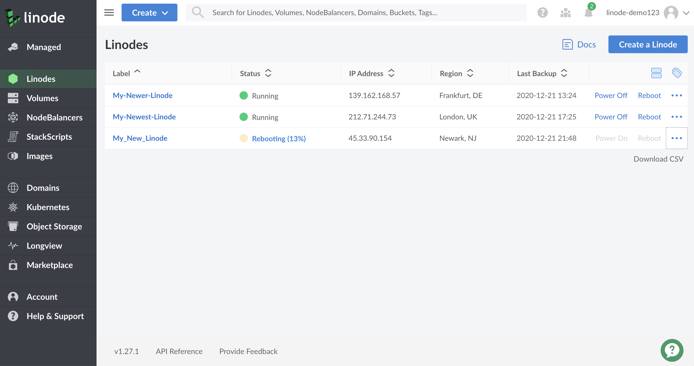
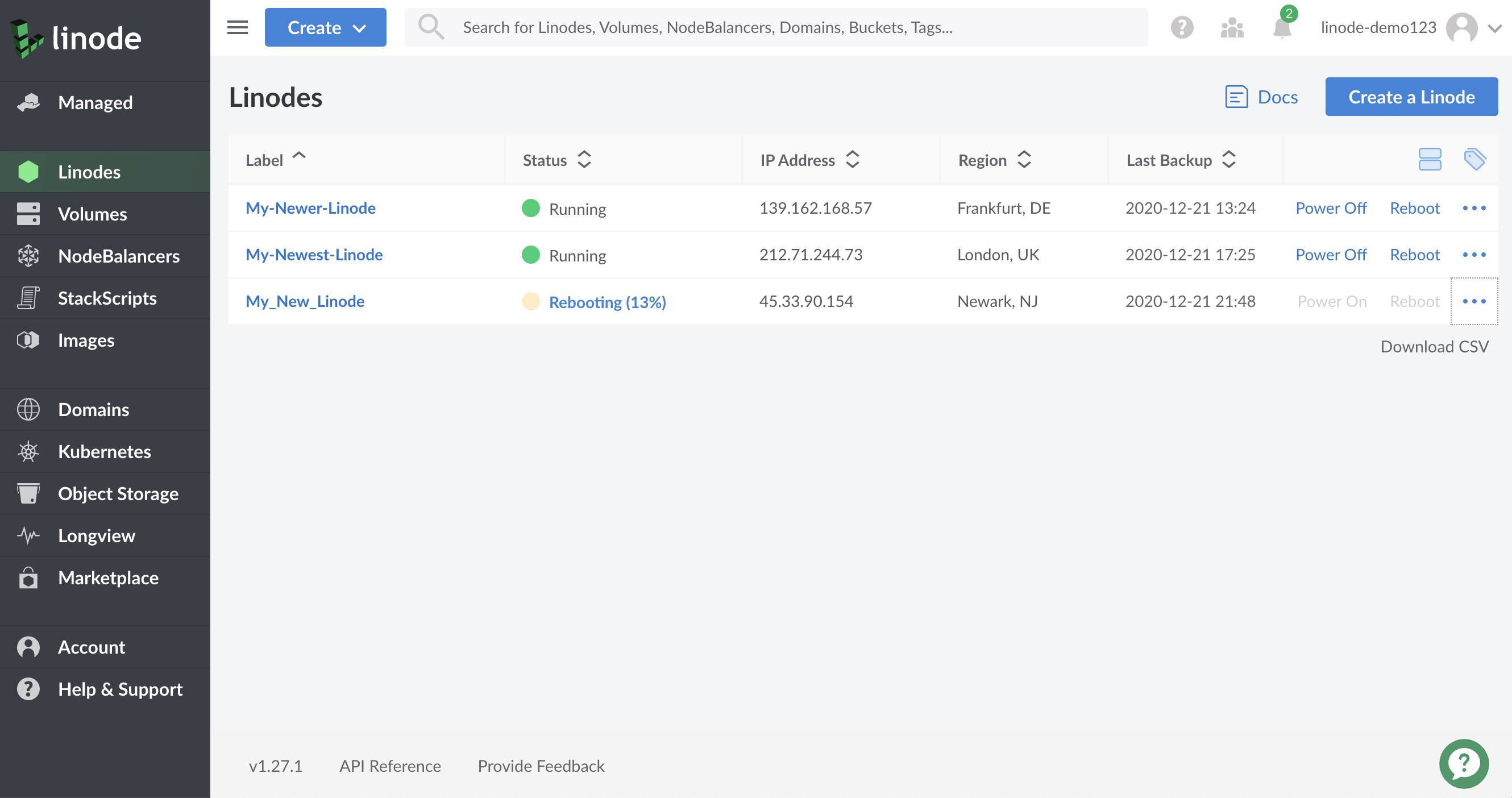
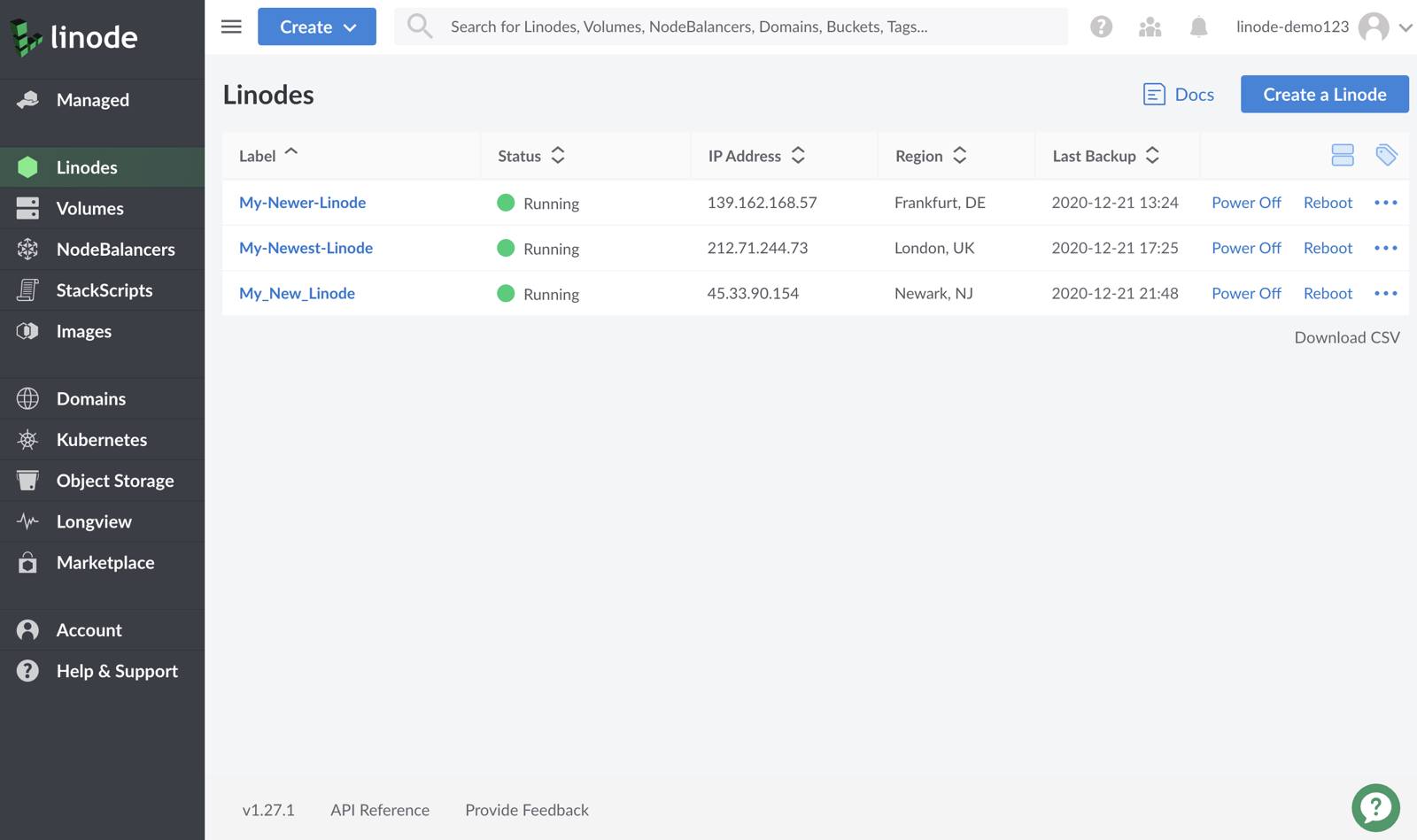
Click the Linodes link in the sidebar:

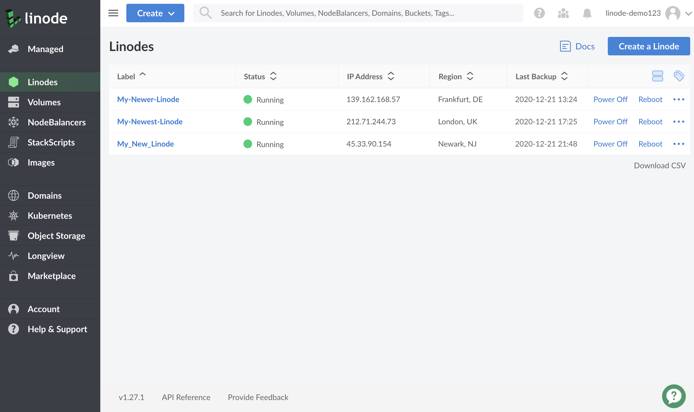
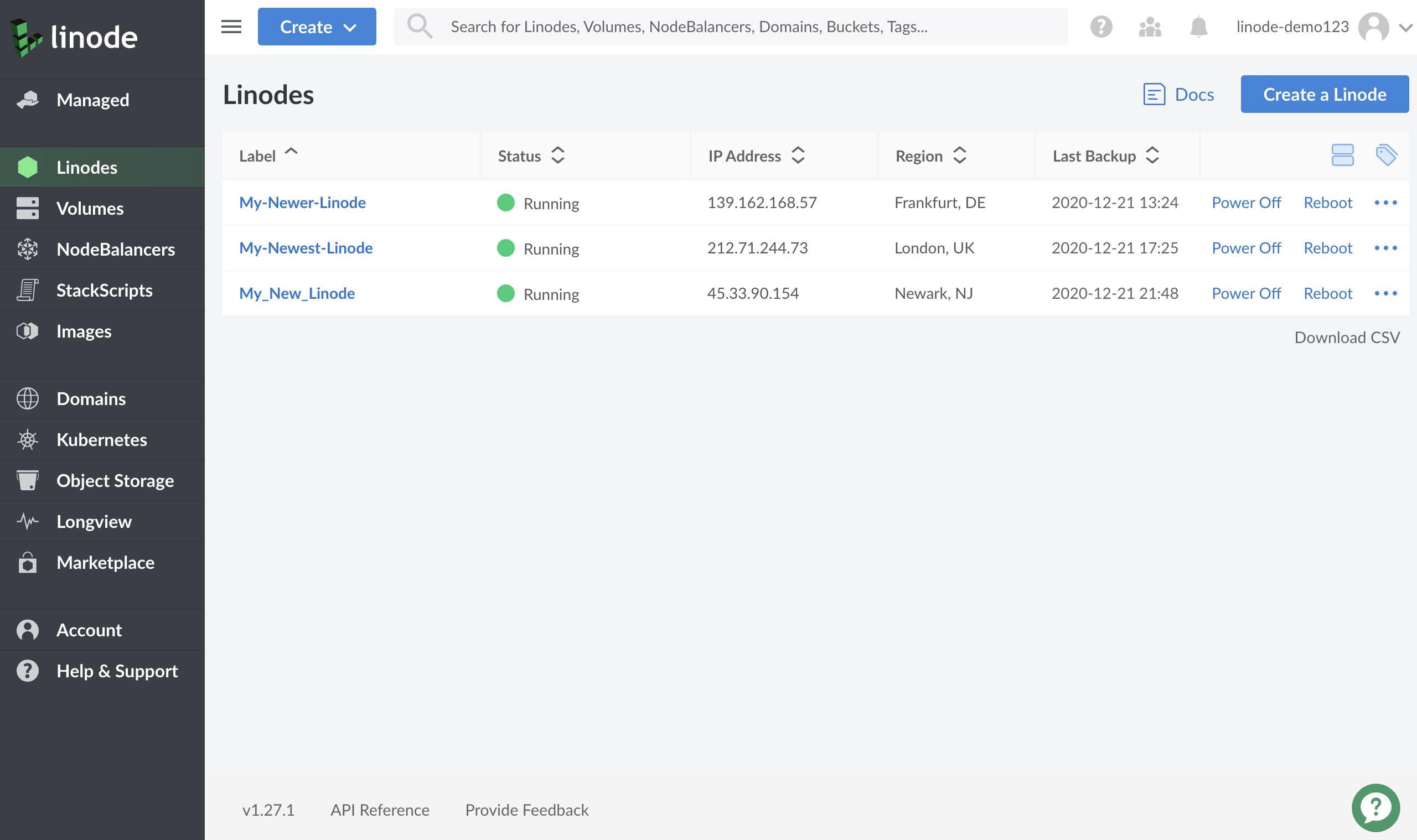
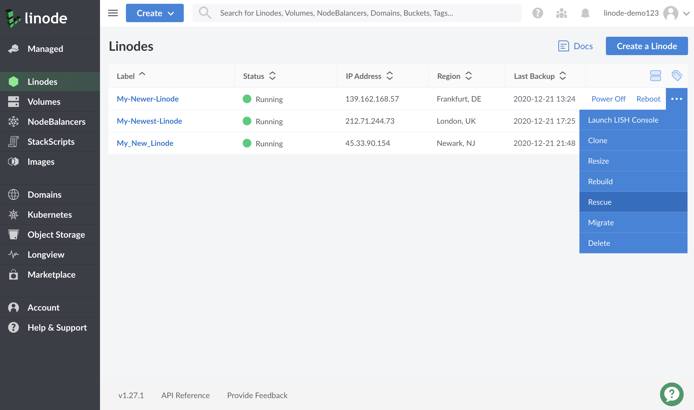
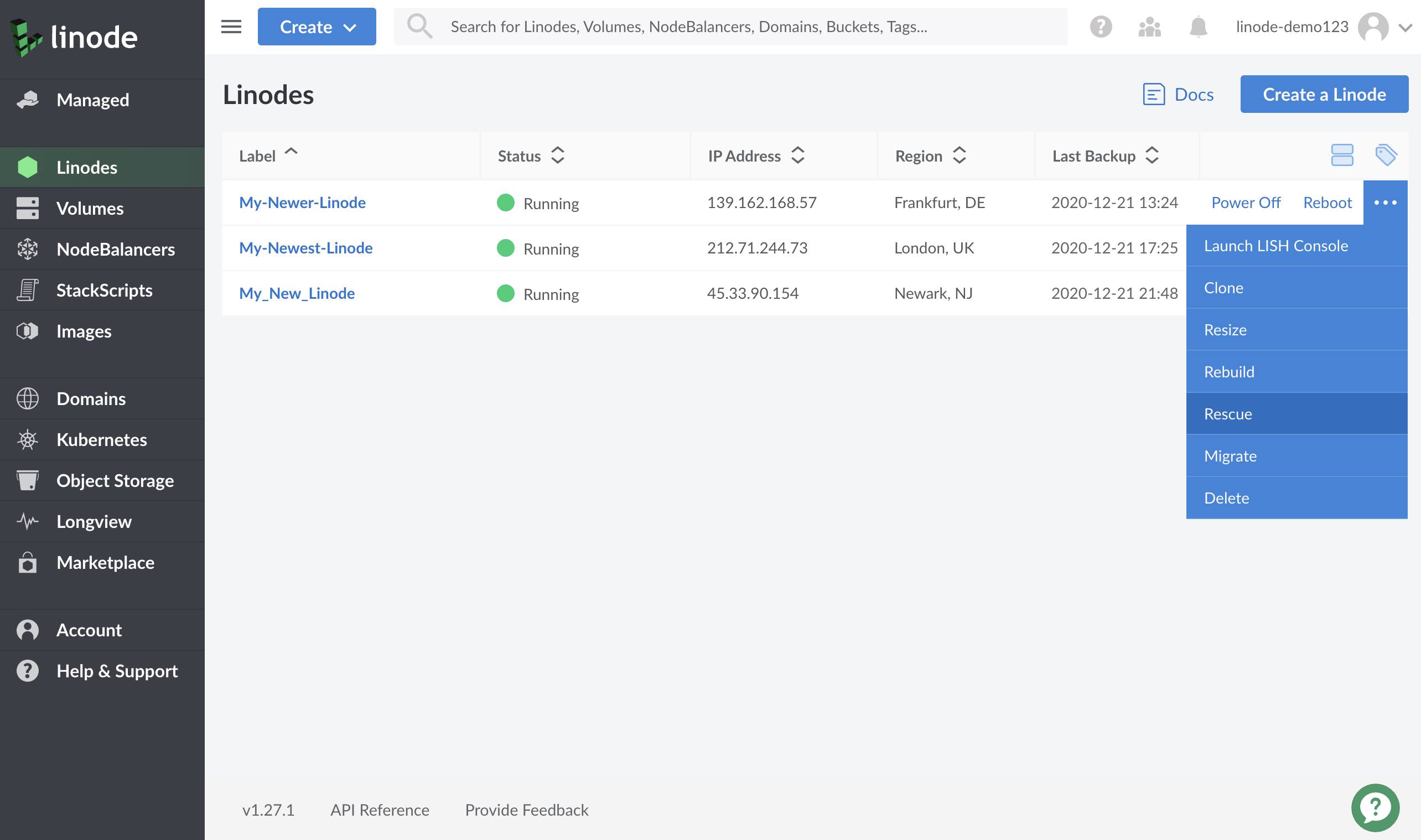
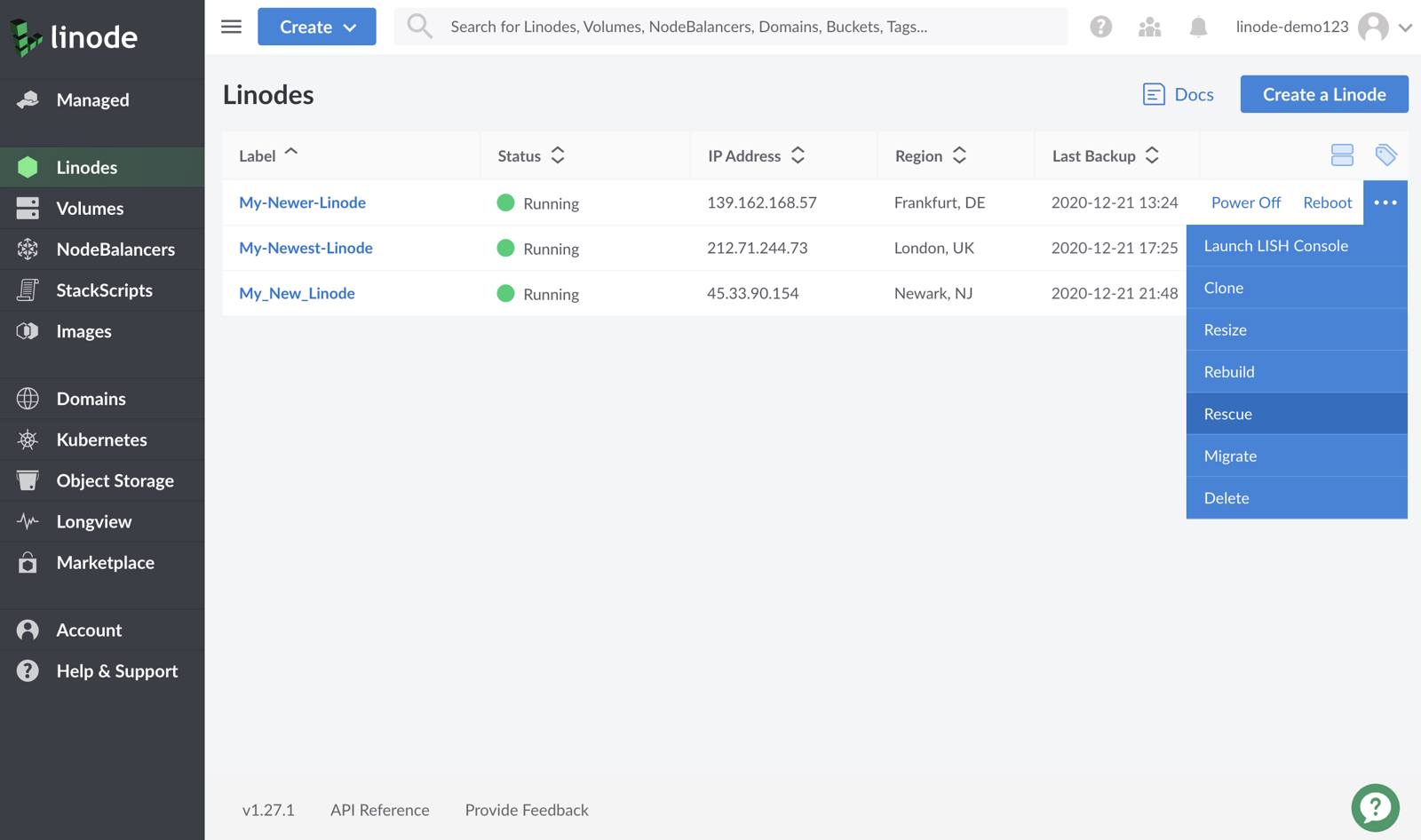
Click on the more options ellipsis next to the Compute Instance that you wish to boot in to Rescue Mode, and click on the Rescue option to open the Rescue form:
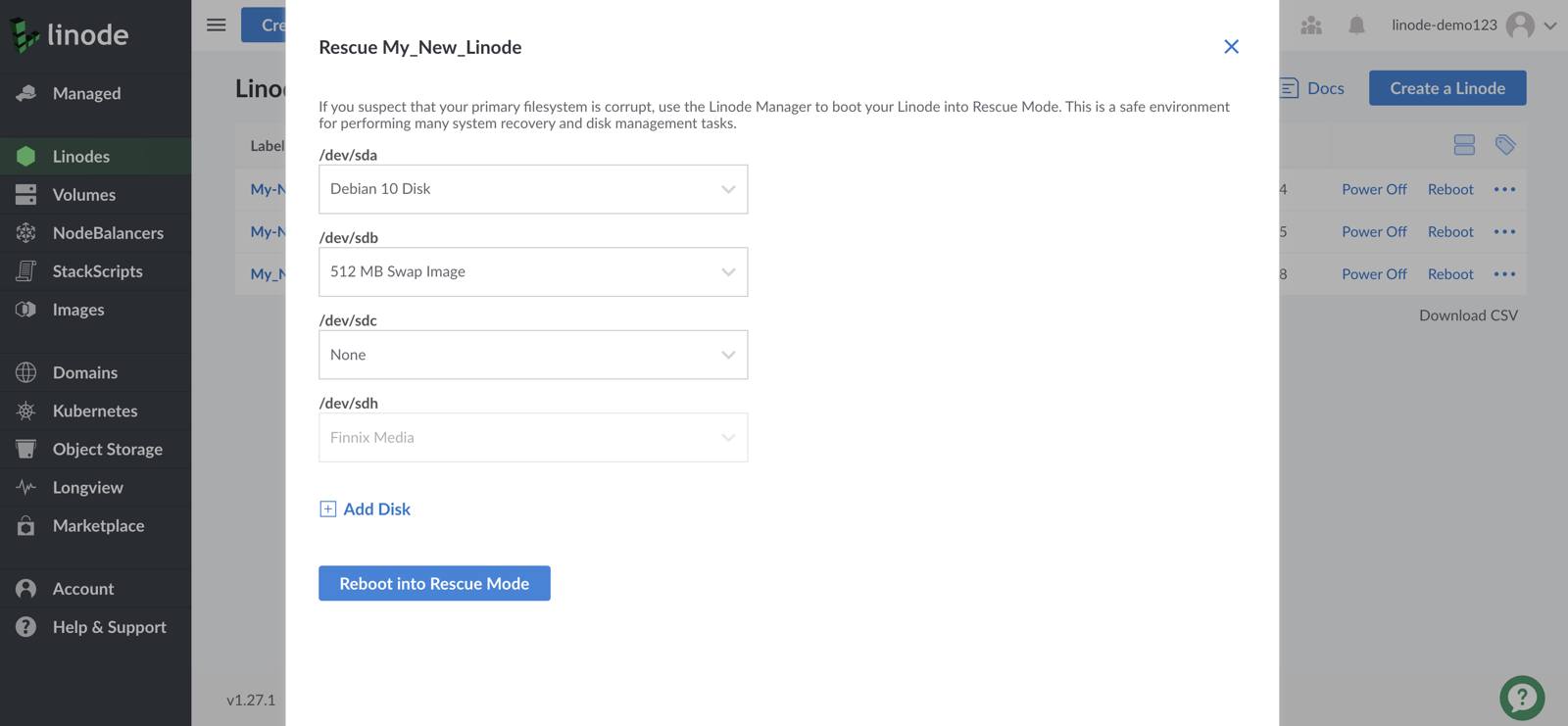
In the Rescue form, select the disks you want to mount:
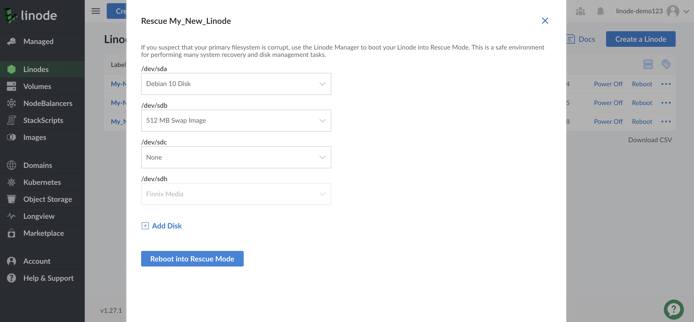
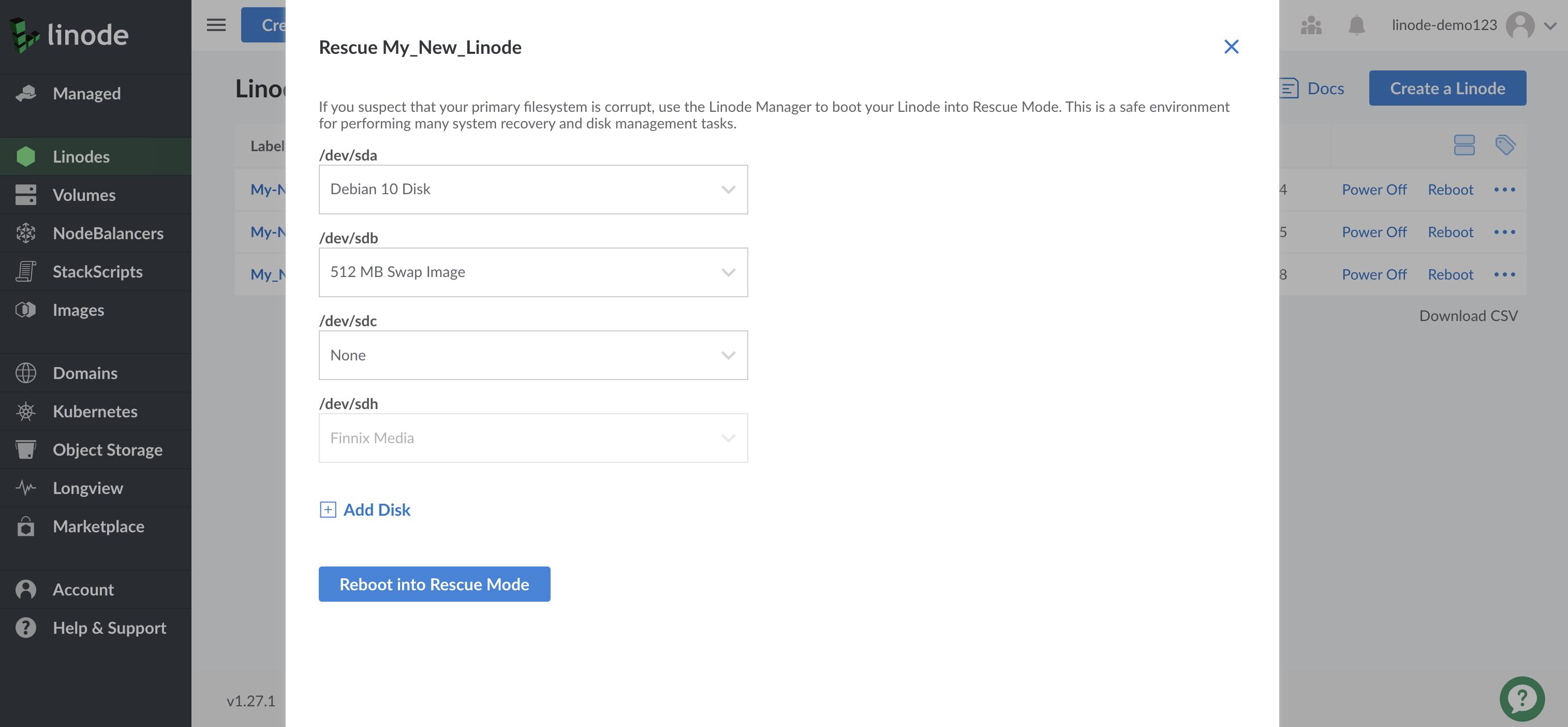
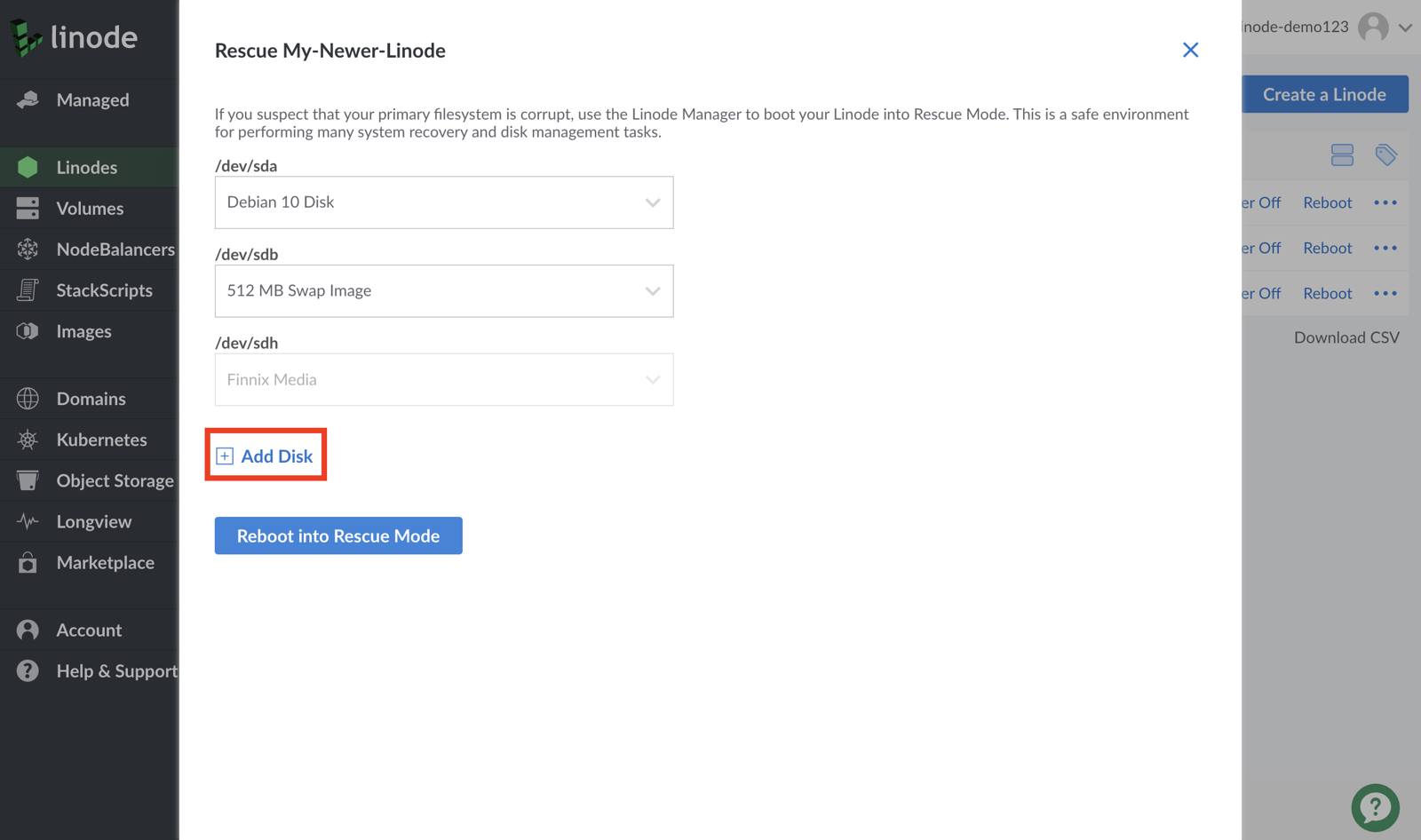
Note Make a note of which devices the disks are assigned to (e.g./dev/sda,/dev/sdb, etc). For example, in the screenshot shown above, the Ubuntu disk corresponds to/dev/sda. These assignments are where you can mount the disks from inside Rescue Mode.If you need to assign additional disks to be accessible inside Rescue Mode, click the Add Disk option:
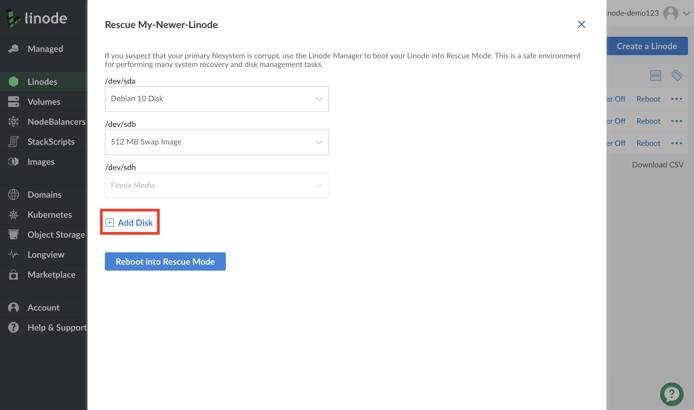
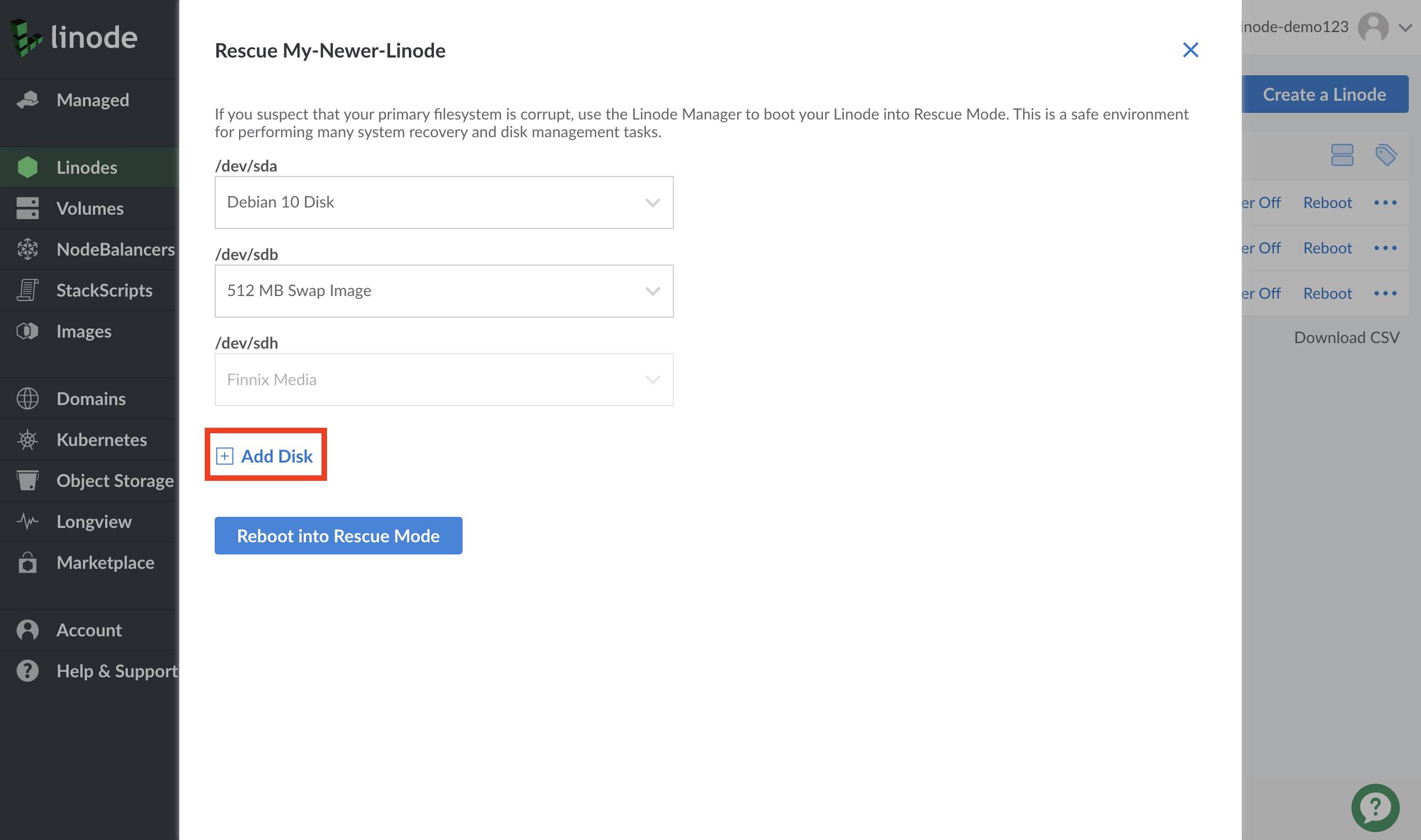
You can assign up to 7 disks in Rescue Mode.
/dev/sdhis always assigned to the Finnix recovery distribution.As a best practice, review the names that your Compute Instance’s disks are using in your configuration profile (
/dev/sda,/dev/sdb, etc.) and match those names to the device assignments you specify in the Rescue form before starting Rescue Mode.Matching these names is especially important if you need to change root within Rescue Mode. The chroot will be able to read your Compute Instance’s
/etc/fstabfile, which defines where and how your instance mounts its disks when booting up, to automatically apply the correct mount options and mount directories to your disks.A mismatch in the names of your disks between your Compute Instance’s configuration profile and your Rescue Mode environment may cause the chroot to mount these disks in the wrong location or with the wrong mount options. As a result, it is important to ensure that these names match.
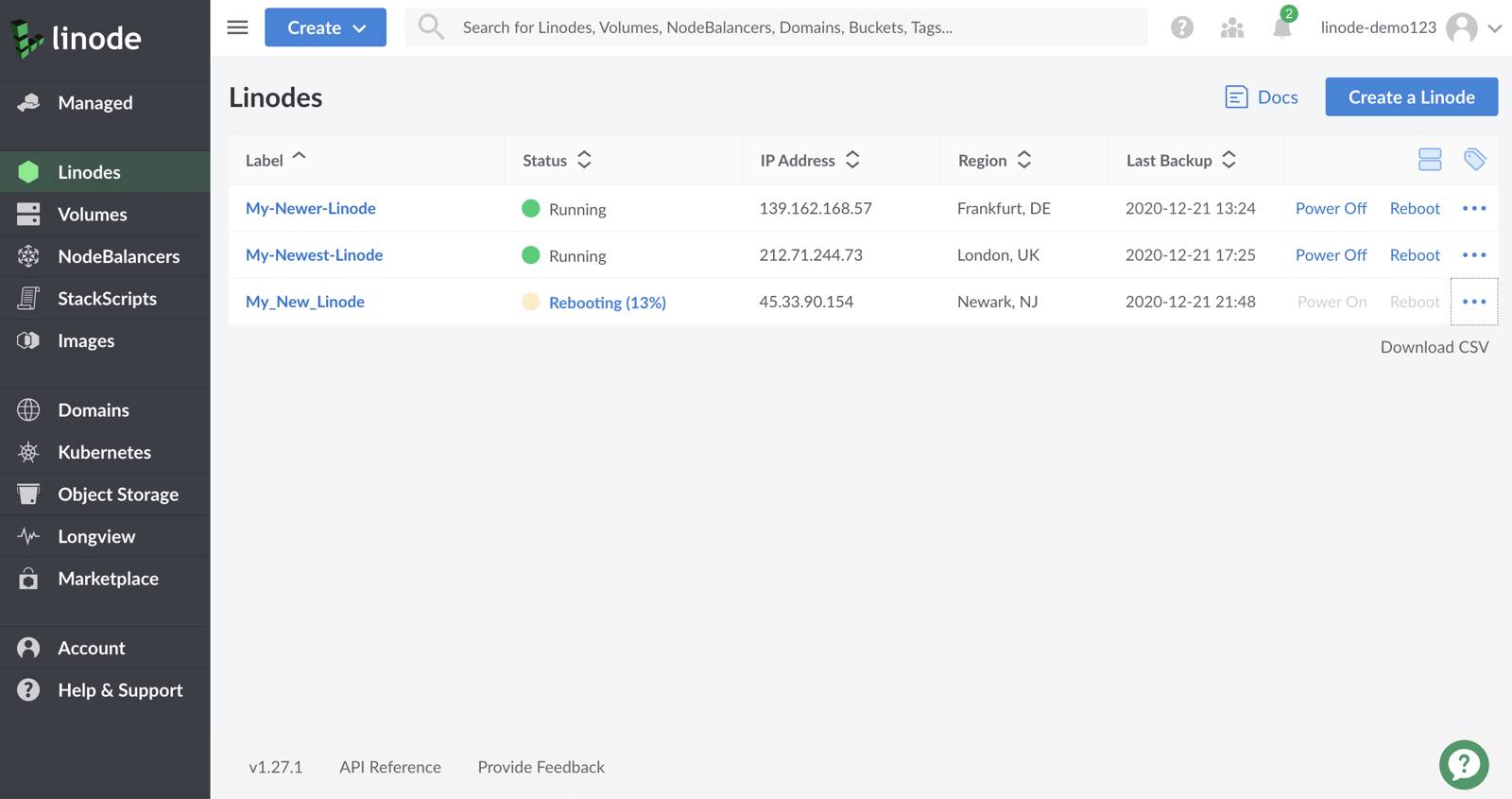
Disks are not mounted by default in Rescue Mode and will need to be mounted manually. See Mounting Disks for instructions on mounting individual disks.Click the Reboot into Rescue Mode button. The Compute Instance reboots into Rescue Mode, and the progress percentage appears. When the instance appears as Running again, proceed to Connecting to a Compute Instance Running in Rescue Mode.
Connecting to a Compute Instance Running in Rescue Mode
By default, Rescue Mode’s Finnix environment does not accept SSH connections. To access the Compute Instance when it’s running in Rescue Mode, connect to it through the Lish console.
To connect with Lish:
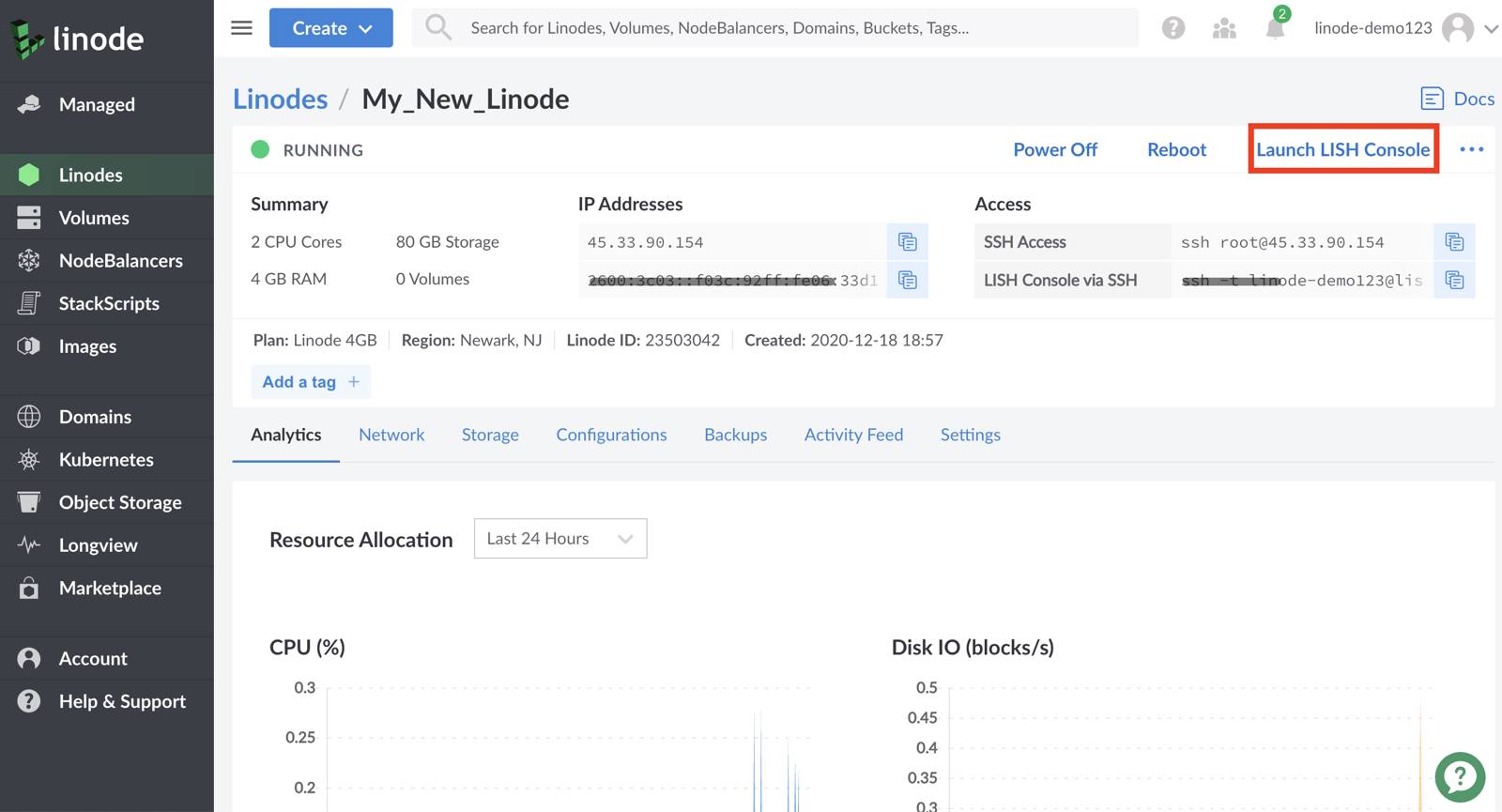
From the Compute Instance’s detail page, click the Launch Console button:
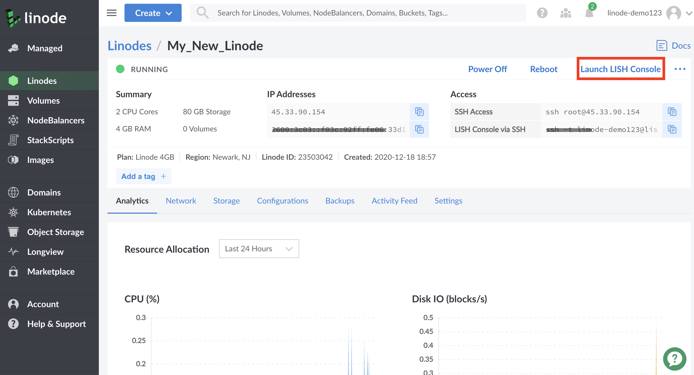
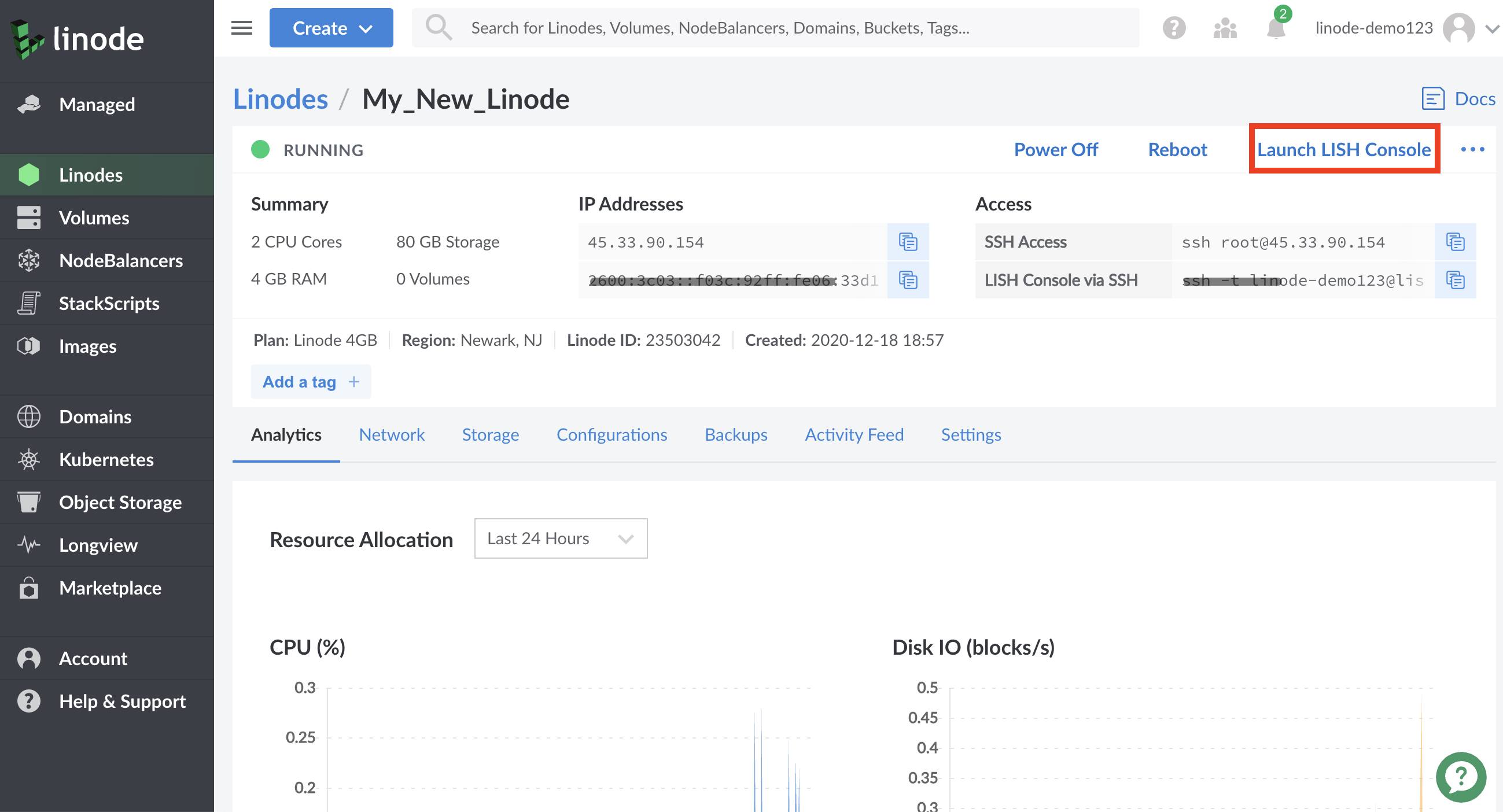
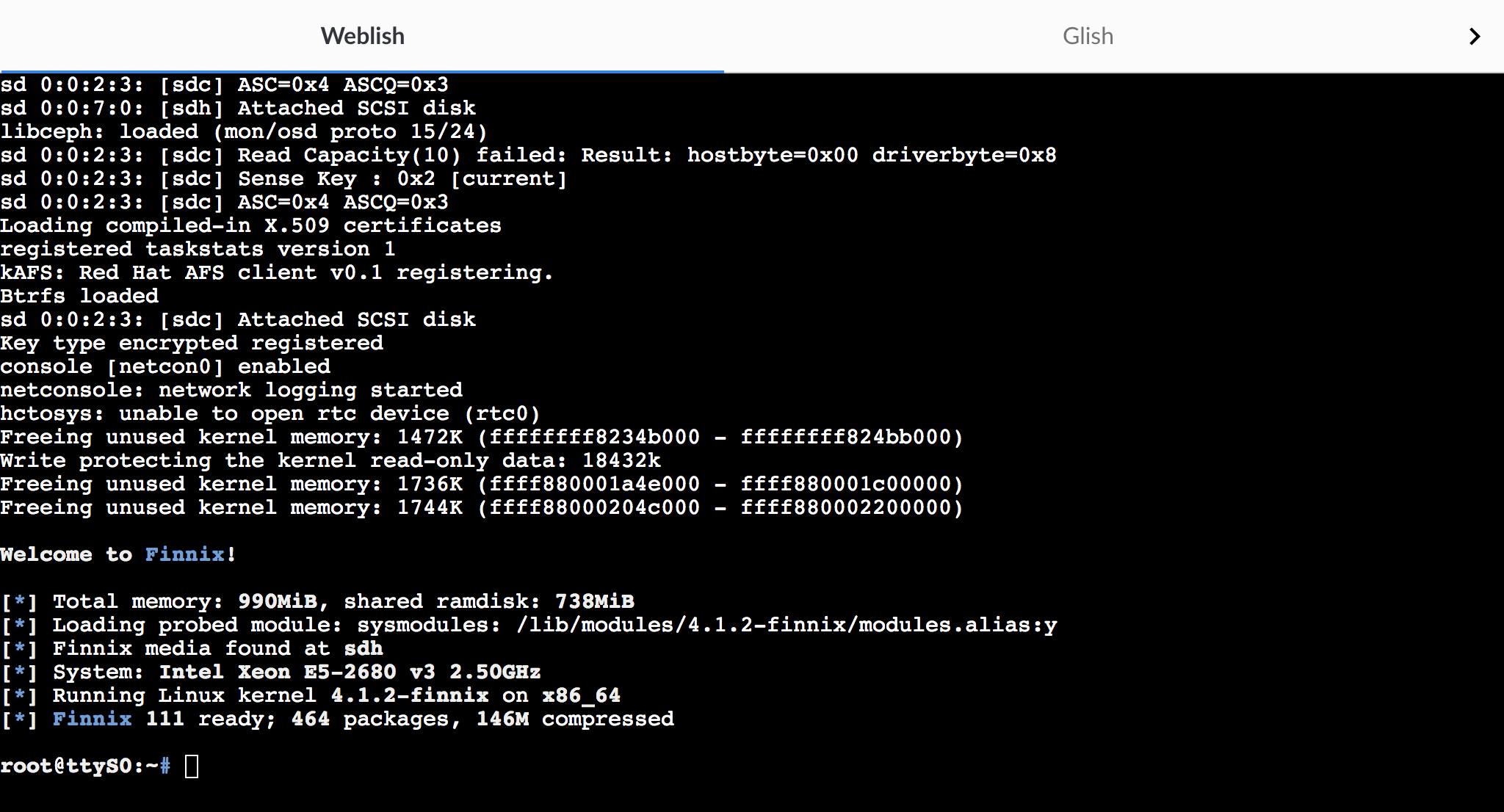
A new window appears which displays your Lish console, a
Welcome to Finnix!message, and a root prompt: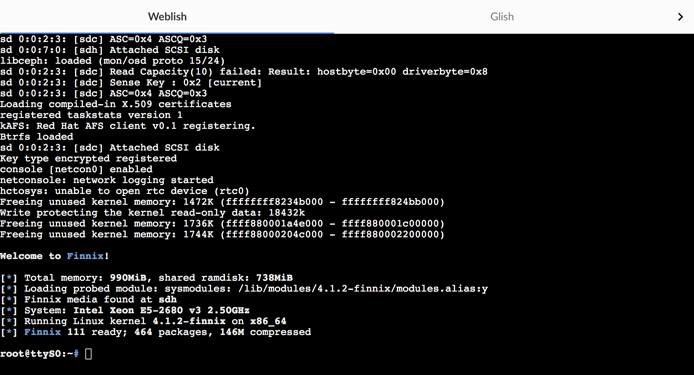
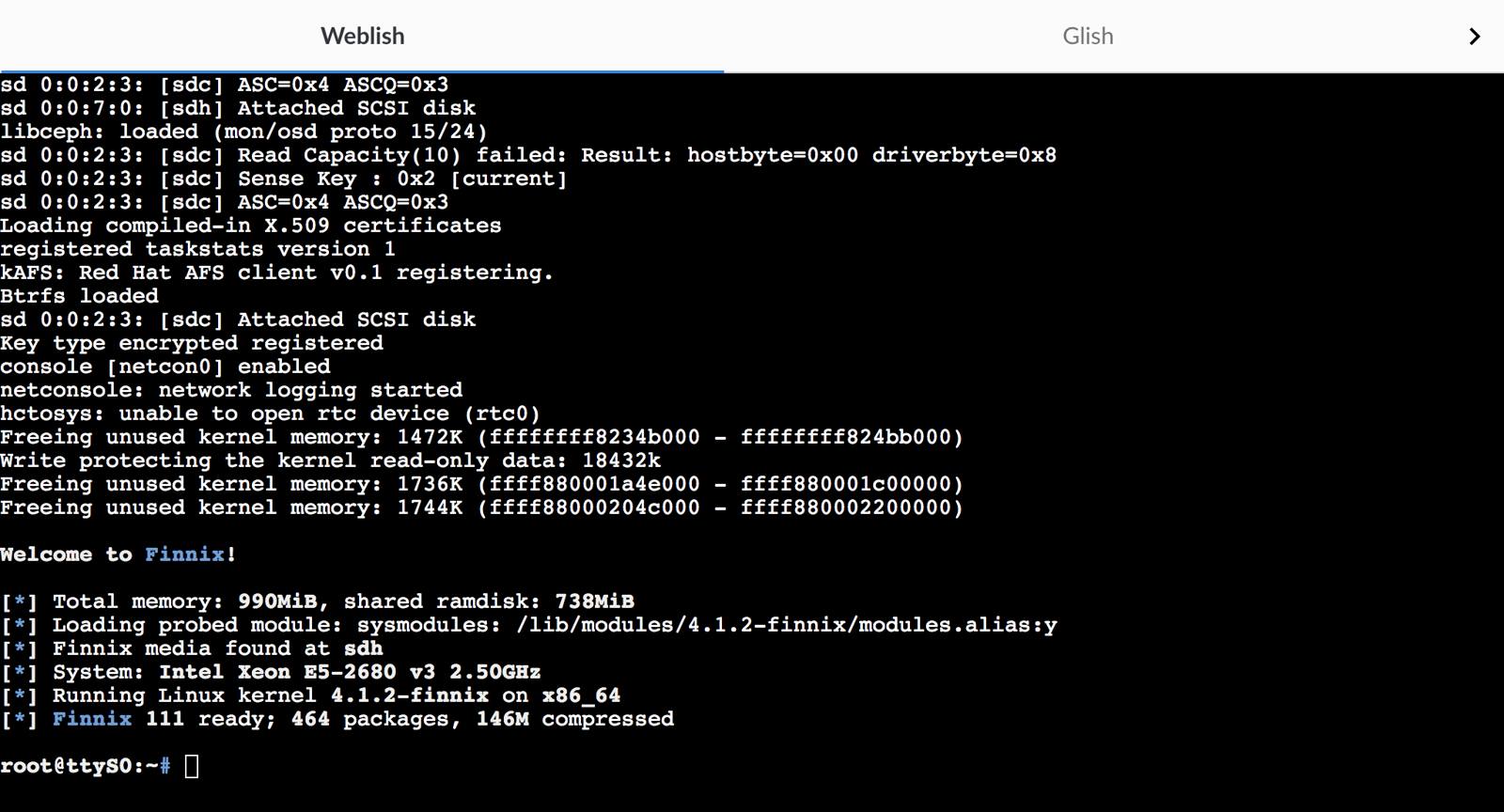
Review the Using the Lish Console guide for further explanation of the Lish console and alternative methods for accessing it, including from your computer’s terminal application.
Starting SSH
The Finnix recovery distribution does not automatically start an SSH server, but you can enable one manually. This is useful if your Compute Instance does not boot and you need to copy files off of the disks. You can also copy entire disks over SSH. To start SSH:
Open the Lish console for your Compute Instance.
Set the
rootpassword for the Finnix rescue environment by entering the following command:passwdNote This root password is separate from the root password of the disk that you normally boot from. Setting the root password for Finnix does not affect the root account of the distribution.Enter the new password for the
rootuser.Start the SSH server:
service ssh start
You can now connect to the server as root with the SSH client on a local computer. You can also access mounted disks with an SFTP client:
For instructions on connecting with an SFTP client, see the File Transfer reference manuals.
For instructions on copying an entire disk over SSH, see Copy a Disk Over SSH.
Performing a File System Check
You can use the e2fsck system utility (short for “ext file system check”) to check the consistency of filesystems and repair any damage detected on ext file systems. If you suspect that the Compute Instance’s filesystem is corrupted, run e2fsck to check for and repair any damage on most disks:
Enter the
df -hcommand to verify that the primary disks are not currently mounted:df -hFilesystem Size Used Avail Use% Mounted on udev 1.9G 0 1.9G 0% /dev tmpfs 395M 516K 394M 1% /run /dev/sr0 503M 503M 0 100% /run/live/medium /dev/loop0 426M 426M 0 100% /run/live/rootfs/filesystem.squashfs tmpfs 2.0G 17M 2.0G 1% /run/live/overlay overlay 2.0G 17M 2.0G 1% / tmpfs 2.0G 0 2.0G 0% /dev/shm tmpfs 5.0M 0 5.0M 0% /run/lock tmpfs 4.0M 0 4.0M 0% /sys/fs/cgroup tmpfs 2.0G 0 2.0G 0% /tmp tmpfs 395M 0 395M 0% /run/user/0pressed_root unionfs 739M 1016K 738M 1% / devtmpfs 10M 0 10M 0% /devThe primary disks should not appear in the list. In the example screenshot from the Booting into Rescue Mode section, the Ubuntu 18.04 disk is assigned to
/dev/sda. Because this device does not appear in the example output fromdf -h, run a filesystem check on it.Important Never rune2fsckon a mounted disk. Do not continue unless you’re sure that the target disk is unmounted.Run
e2fsckby entering the following command, replacing/dev/sdawith the location of the disk you want to check and repair:e2fsck -f /dev/sdaIf no problems are detected,
e2fsckdisplays the tests it performed:e2fsck 1.45.6 (20-Mar-2020) Pass 1: Checking inodes, blocks, and sizes Pass 2: Checking directory structure Pass 3: Checking directory connectivity Pass 4: Checking reference counts Pass 5: Checking group summary information /dev/sda: 44611/2564096 files (0.1% non-contiguous), 602550/10240000 blocksIf
e2fsckdetermines that there is a problem with the filesystem, it prompts you to fix problems as they are found during each test:e2fsck 1.45.6 (20-Mar-2020) ext2fs_open2: Bad magic number in super-block e2fsck: Superblock invalid, trying backup blocks... Resize inode not valid. Recreate<y>?Press enter to automatically attempt to fix the problems.
After the filesystem check completes, any problems detected should be fixed. Try rebooting the Compute Instance from the Cloud Manager. If
e2fsckfixed the issues, the instance should boot normally.
Installing Packages
The Finnix recovery distribution is based on Debian, so you can use the apt package management system to install additional software packages in the temporary rescue environment. For example, you could install and run the nmon utility by using the following commands:
apt update
apt install nmon
nmon
The software packages you install is available as long as the Compute Instance is running in Rescue Mode.
Mounting Disks
/etc/fstab file and update it accordingly. In the following example /dev/sda is the location of the disk. For more information, see the Update your fstab guide.By default, your disks are not mounted when your Compute Instance boots into Rescue Mode. However, you can manually mount a disk under Rescue Mode to perform system recovery and maintenance tasks.
These instructions mount the /dev/sda disk. If you are mounting a different disk, replace sda with the name of your disk throughout these instructions.
Create a new directory for your disk:
mkdir -p /media/sdaMount the disk to make its contents available at the
/media/sdadirectory:mount -o barrier=0 /dev/sda /media/sdaView the contents of the disk to confirm you can access them:
ls /media/sdaYou can now read and write to files on the mounted disk.
You can unmount your disk by running the unmount command. You may want to unmount your disk to run a file system check, for example.
The umount command requires you to specify the device you want to unmount. You may specify this device in one of two ways:
Specify the device name itself:
umount /dev/sdaSpecify the mount directory:
umount /media/sda
If you would like to mount or unmount additional disks on your system, repeat these instructions with the appropriate substitutions.
Change Root
Changing root is the process of changing your working root directory. When you change root (abbreviated as chroot) to your root disk, you are able to run commands as though you are logged into that system.
Chroot allows you to change user passwords, remove/install packages, and do other system maintenance and recovery tasks in your Compute Instance’s normal Linux environment.
Create a new directory for your disk:
mkdir -p /media/sdaBefore you use chroot, mount the root disk:
mount -o exec,barrier=0 /dev/sda /media/sdaNote If you mounted your disk without using the
execoption prior to reviewing this section, include theremountoption in yourmountcommand:mount -o remount,exec,barrier=0 /dev/sda /media/sdaTo create the chroot, you need to mount the temporary filesystems:
cd /media/sda
mount -t proc proc proc/
mount -t sysfs sys sys/
mount -o bind /dev dev/
mount -t devpts pts dev/pts/
Chroot to your disk:
chroot /media/sda /bin/bashYour Compute Instance may expect its other disks to be mounted in specific directories during its regular operations. These disks and their expected directories are defined in the
/etc/fstabfile. In order for these directories to be accessible within the chroot, you need to mount them from within the chroot. For example, if your instance defines/dev/sdcin its/etc/fstab, you can the following command to mount it:mount /dev/sdcNote This
mountcommand only specifies a disk name without specifying a mount point. This causesmountto use the/etc/fstabfile in the chroot to determine the mount point and apply the correct mount options.As a result, this command depends on you having made these disks available to your Rescue Mode environment under the same names that they use in your configuration profile.
If these names do not match, mounting your disks using only a device name will either fail completely, mount them at the wrong directory, and/or apply the wrong mount options to them.
The easiest way to alleviate this problem is by starting a new Rescue Mode session from Cloud Manager which properly matches these disk names between your Rescue Mode environment and your configuration profile.
To exit the chroot and get back to Finnix type “exit” :
exit
Rebuilding
If you can’t rescue and resolve issues on an existing disk, you likely need to rebuild the Compute Instance. Rebuilding the instance is the process of starting over with a set of known-good disks that you can boot from. There are a few different ways you can do this:
If you are subscribed to the Backup Service, you can restore from an existing backup and return the Compute Instance to a previous state.
If you aren’t subscribed to the Backup Service, you can copy files off an existing disk and then use the Rebuild feature of the Cloud Manager to erase everything and start over again from scratch.
If you have a backup system other than the Backup Service in place, you can rebuild your Compute Instance and then restore the data from that backup service. The methods for restoring data varies by the kind of backup system that you use.
Did an unauthorized intruder gain access to your Compute Instance? Since it is virtually impossible to determine the full scope of an attacker’s reach into a compromised system, you should never continue using a compromised system.
Linode recommends that you follow the instructions in Recovering from a System Compromise. You need to create a new Compute Instance, copy your existing data from the old instance to the new one, and then swap IP addresses.
Restoring from a Backup
If you previously enabled the Backup Service, you may be able to restore one of the backups to the Compute Instance. Review the Restoring from a Backup section (specifically, the Restore to an Existing Compute Instance section) of the The Backup Service guide for instructions.
If you created backups with an application other than Linode’s Backup Service, review the application’s instructions to restore a backup to the Compute Instance.
Use the Rebuild Feature
The Cloud Manager provides a Rebuild feature performs the following two actions:
The current disks are removed.
A new set of disks is provisioned from one of the Cloud Manager’s built-in Linux images, or from one of the saved images.
Important If you use the Rebuild feature, the data from the disks that are deleted are not retrievable. You may back up your data manually or create a snapshot through Linode’s Backup Service to preserve data before using the Rebuild feature.
If you’d like to deploy a new Linux distribution without erasing the existing disks, follow the instructions in the Creating a Disk guide. This is a better option if you need to create a new distribution, but also need to save the existing data.
The Compute Instance needs to have some amount of unallocated disk space in order to provision a new distribution. If the instance does not have enough unallocated space, you can shrink your existing disks to free up space or resize your Compute Instance to a higher resource tier.
If you need to copy files from your existing disk to another location before rebuilding, you can start SSH under Rescue Mode and then use an SFTP client to copy files to your computer.
To use the Rebuild feature:
If you need to copy files from existing disk to another location before rebuilding, you can start SSH under Rescue Mode and then use an SFTP client to copy files to your computer, another server, or somewhere else.
Log in to the Cloud Manager.
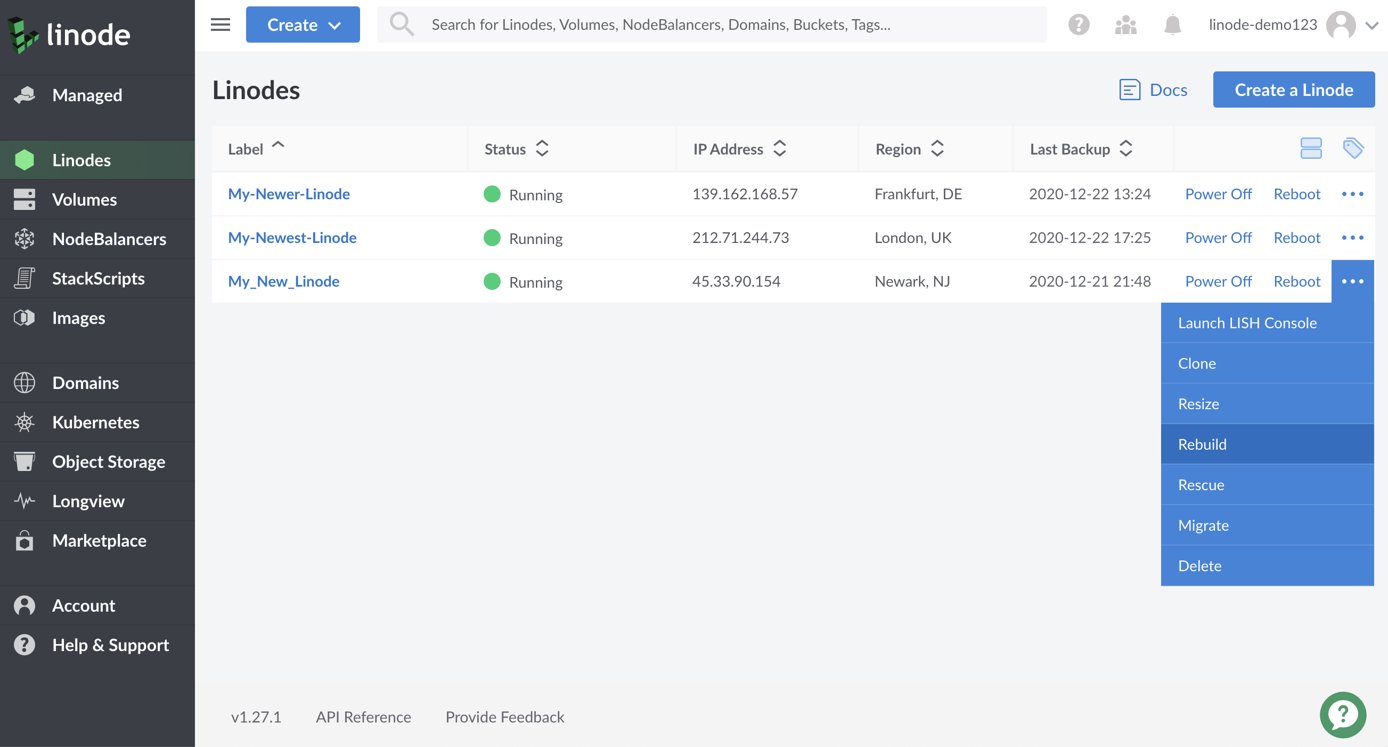
Click on the Linodes link in the sidebar:
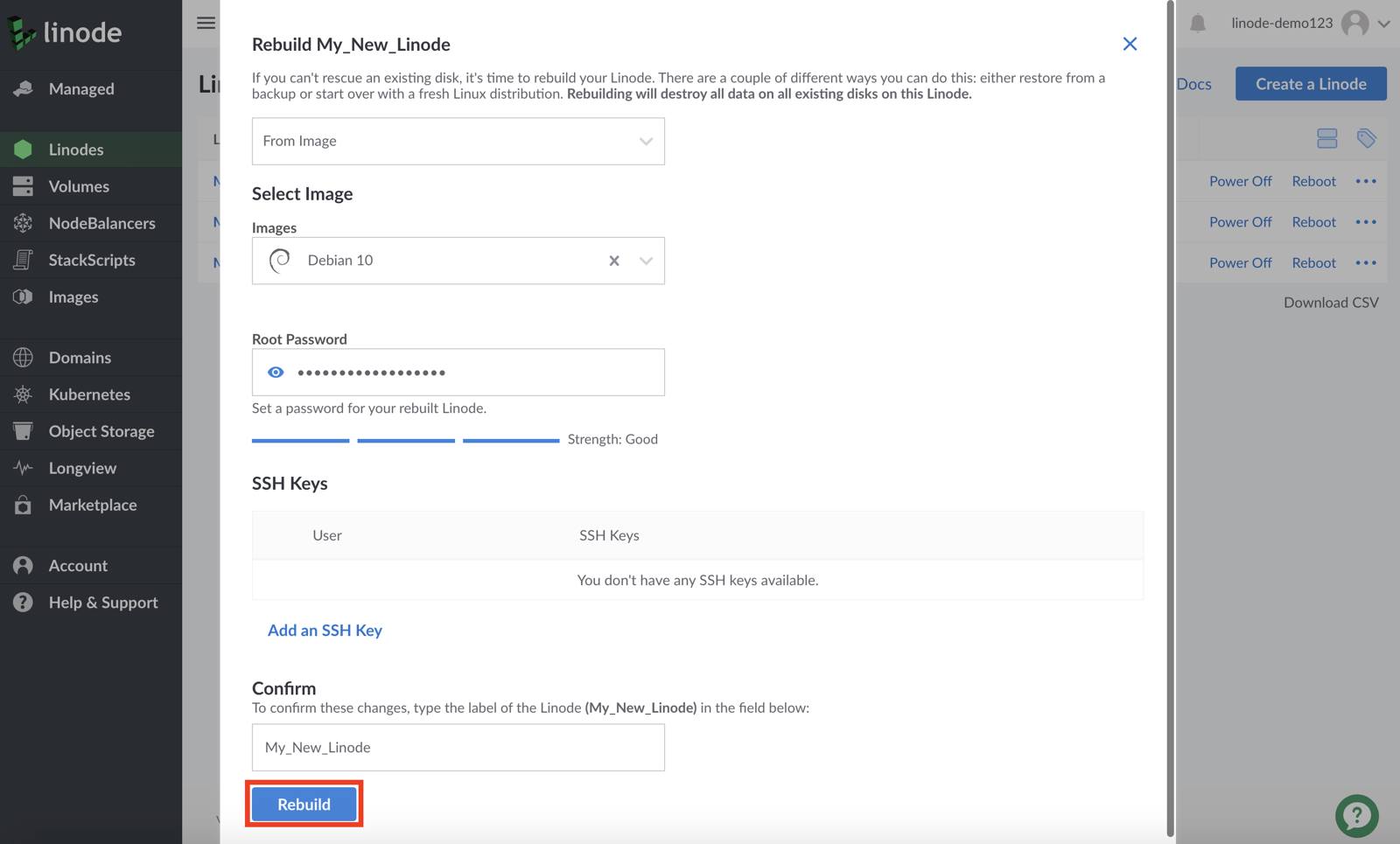
Click on the more options ellipsis next to the Compute Instance that will be rebuilt, and click on the Rebuild option to open the Rebuild form:
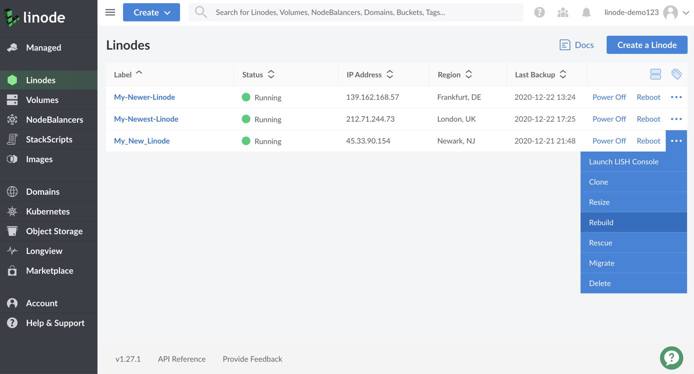
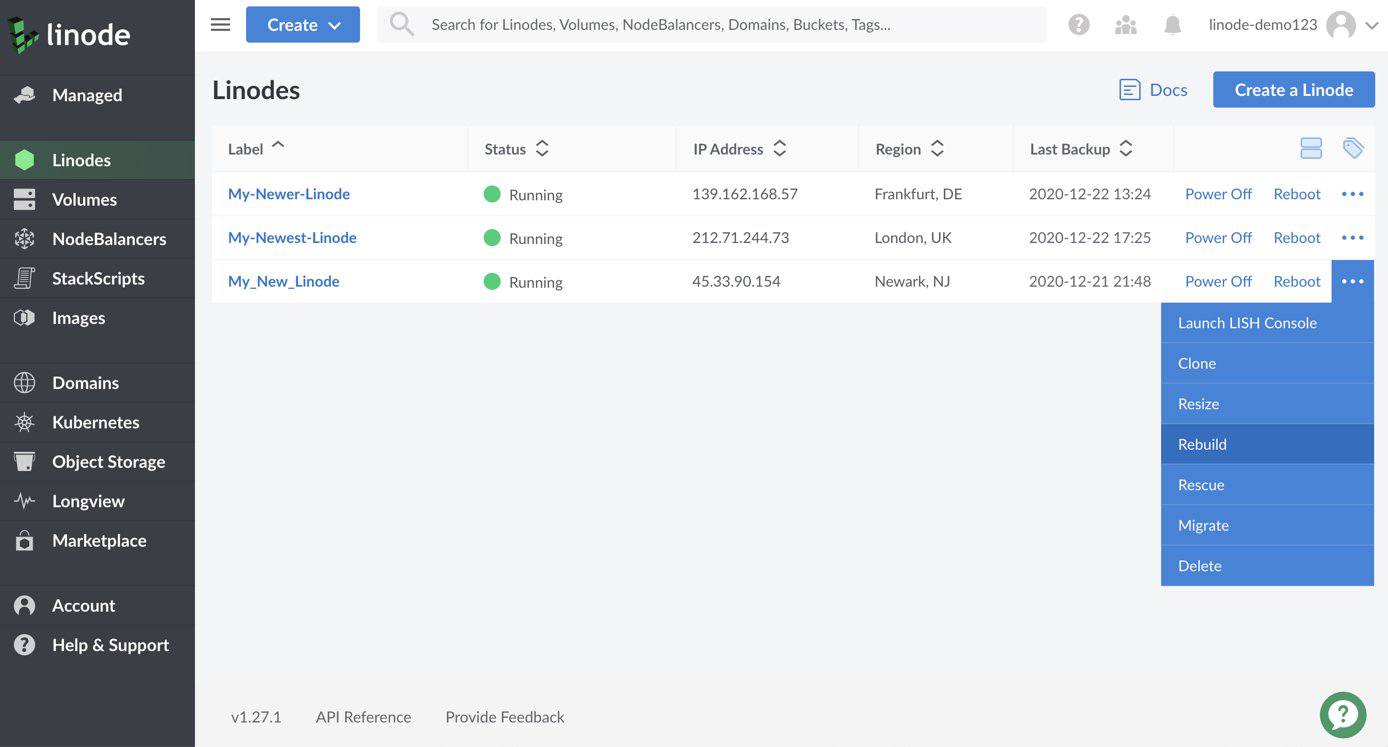
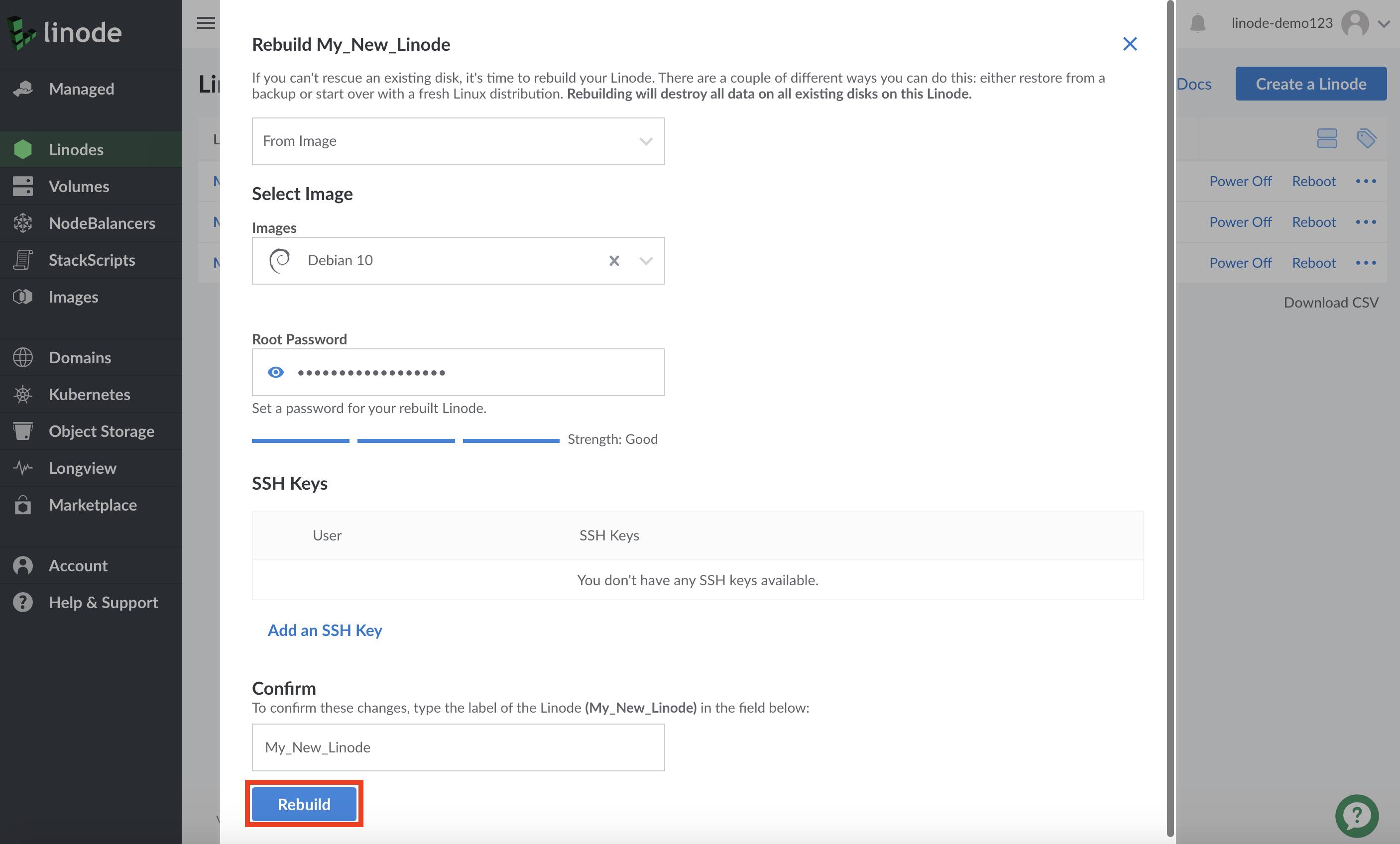
Complete the Rebuild form. Select an image or StackScript to deploy and enter a root password. Optionally, select one or more SSH keys (if you have not added any SSH Keys via the Cloud Manager, this option does not appear).
Account passwords must be a minimum of 11 characters in length and be sufficiently complex. Each password is individually analyzed by an algorithmic tool to determine it’s strength. When creating a password, follow the recommendations listed below:
- Password should be at least 11 characters in length (though longer passwords are considered stronger).
- Avoid using simple passwords based on dictionary words.
- Use a mixture of unpredictable uppercase letters, lowercase letters, numbers, and symbols.
- Avoid repeating characters (
aaa), sequences (abcd), and keyboard patterns (qwerty).
Click on Rebuild button after completing the form:
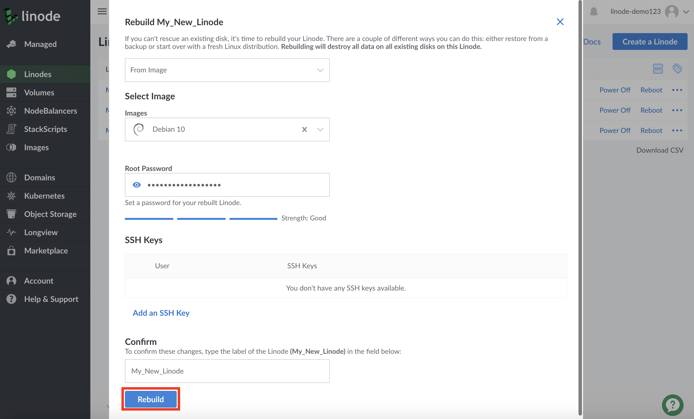
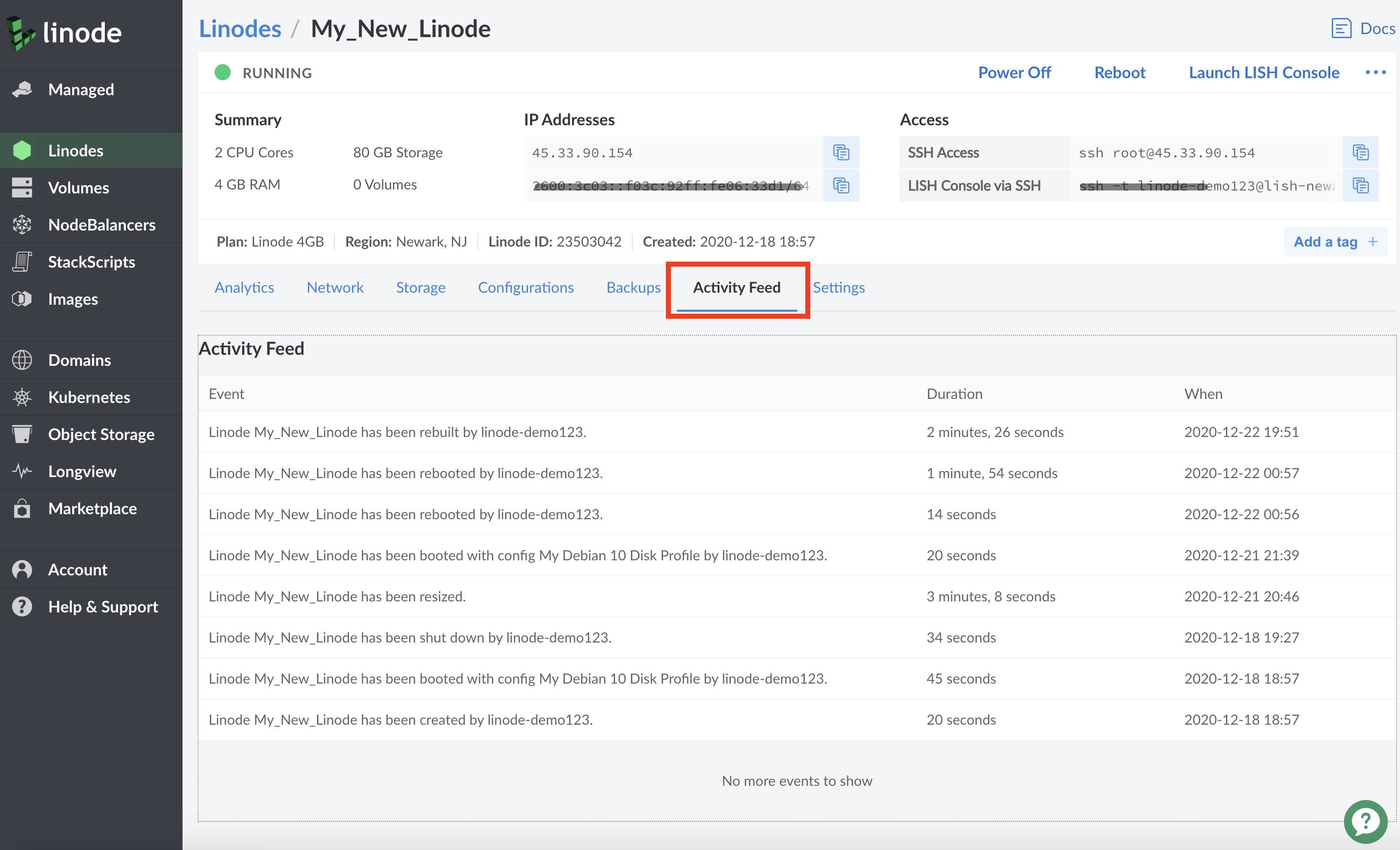
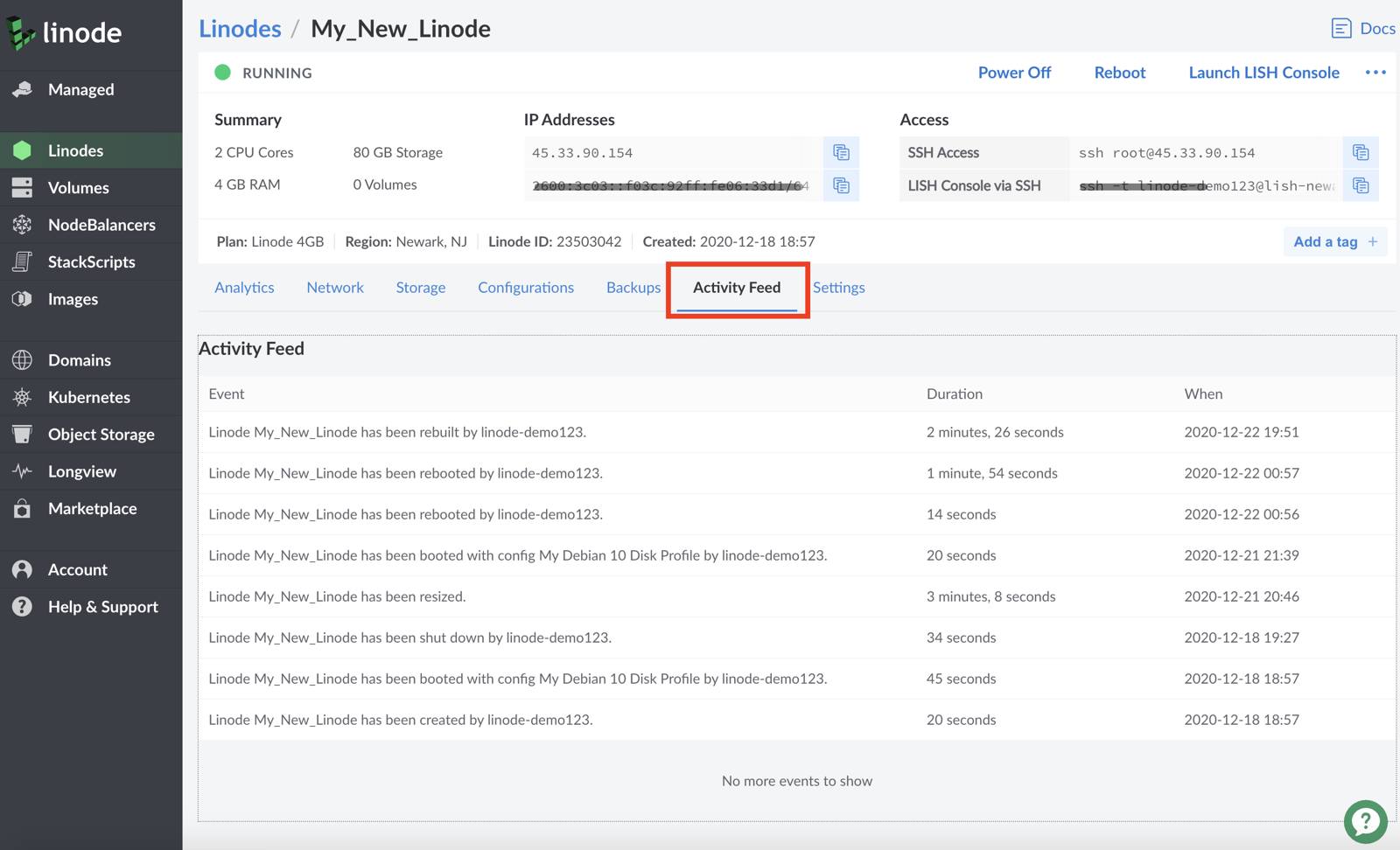
The Compute Instance may take several minutes to complete the rebuild process. Select the instance that is being rebuilt and select the
Activity Feedtab to monitor rebuild progress and confirm that the rebuild has been completed: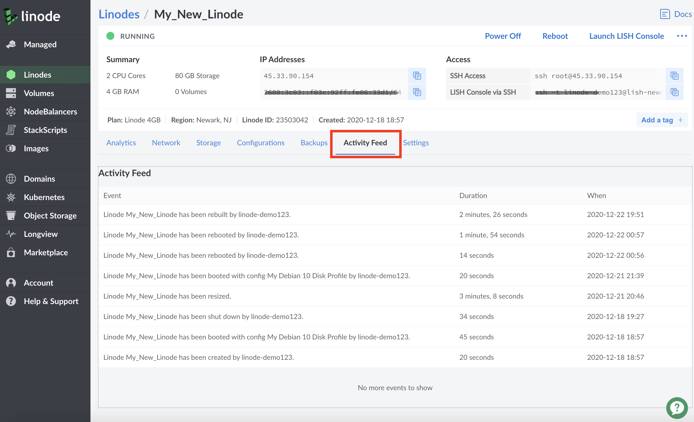

This page was originally published on